


Have bundles of .m2ts footages from JVC GZ-HD300 camcorder and want to editing HD AVCHD movies in iMovie? Actually, iMovie program is capable of accepting the shootings from some models of camcorders. Know details about iMovie'11 supported camcorder models list.
When check it out, you will find that the model of JVC GZ-HD300 isn't included. In the case, some tried renaming .m2ts to .mpg. It maybe helpful for those Windows users, because it can be edited in Sony Vegas. How about editing the "tough" file in iMovie? Here is an efficient way out: convert JVC GZ-HD300 AVCHD to iMovie H.264 or MOV.
Tips: Before doing the conversion, you should transfer the .m2ts files from camcorder to Mac.
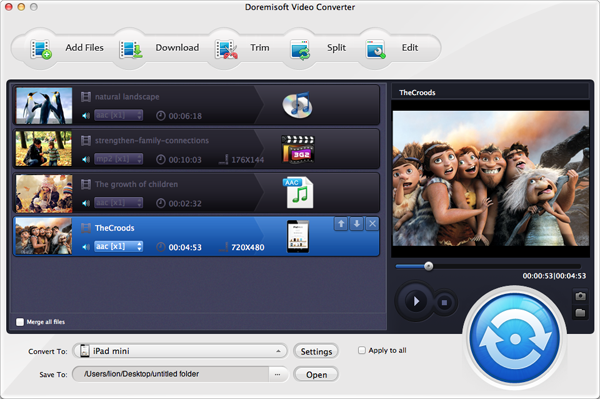
The Mac JVC Video to iMovie Converter enables you to convert any video from JVC camcorder to iMovie acceptable file formats. More than that, it also has specific output selections for HD video format or multimedia devices.
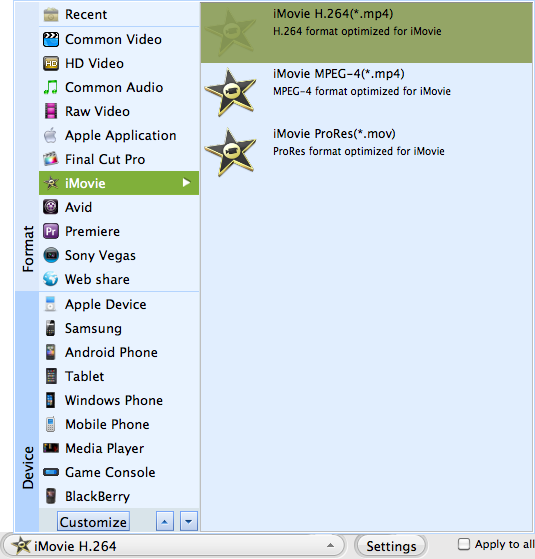
Find the "Profile" field, click the Arrow to the very right of the Profile field to open the Profile down-up list. From the opened list, move your mouse cursor to iMovie, and select any of its iMovie video formats, for example, you can choose iMovie DV as an output format.
Browser compatibility : IE/Firefox/Chrome/Opera/Safari/Maxthon/Netscape
Copyright © 2009-2015 Doremisoft Software Co., Ltd. All Rights Reserved
 Download
 Download