Would like to edit your AVCHD video with Windows Movie Maker, Sony Vegas, Adobe Premiere but it can't be supported? Would like to play your AVCHD movie on your new tablet like iPad Air, Nexus 10, etc? Doremisoft AVCHD Converter is the right tool for you to solve all these problems. It is an all-in-one easy-to-use yet practical video file converter and light-weight AVCHD editor. With Doremisoft AVCHD Video Converter, you are able to convert AVCHD to all popular video and audio formats, presets for the latest high-tech gadgets, media players and applications as well. All kinds of AVCHD camcorder models are supported: JVC Everio AVCHD Camcorders, Canon AVCHD Camcorders, Sony AVCHD Camcorders, Panasonic AVCHD Camcorders and more.
Now go ahead following the tutorial below to convert AVCHD videos on Windows:
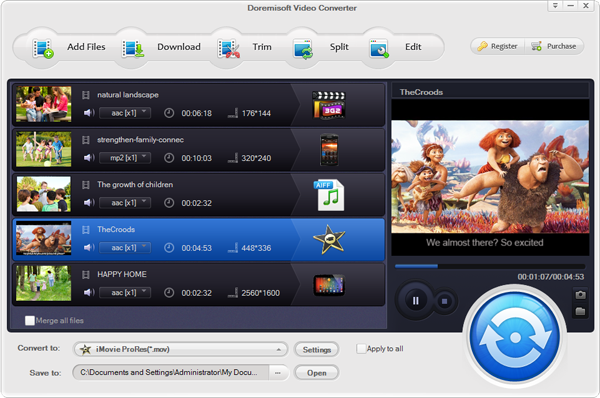
Download Doremisoft AVCHD Converter, install and launch it. Connect the AVCHD Camcorders to your PC, and then click the "Add File" button on the upper left of the converter to locate the AVCHD videos. You can directly drag and drop the AVCHD files onto the program as well. Batcha conversion is available, so you can add and convert several files at a time.
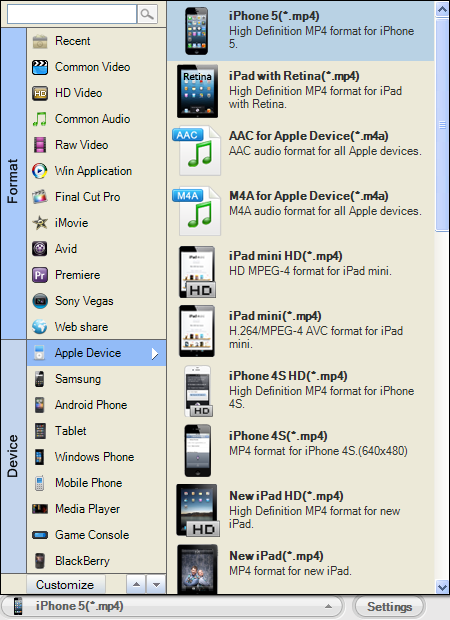
Hit the "Convert to" menu bar, and then select the output format you need from the drop-up profile list. In addition to common video and audio output formats, the AVCHD Converter also provides you optimal output presets for applications like Windows Movie Maker, Adobe Premiere, Sony Vegas, etc; Apple devices such as iPad 5/4/mini, iPhone 5s/5c/5, Apple TV 3; Android devices including Galaxy S4, Note 3, HTC One and more. Just pick out the one fits you most.
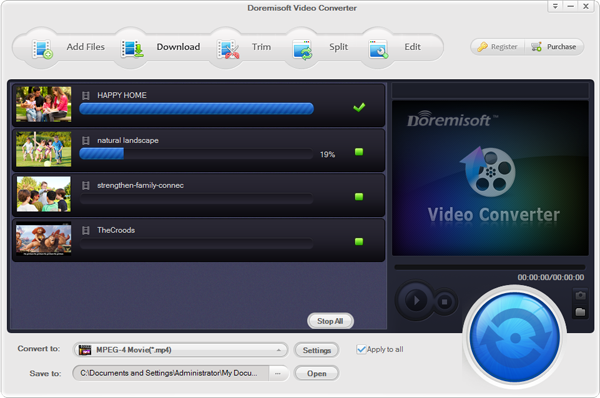
Click the "Start" button to start to convert AVCHD video files. Now you can just relax, stretch your arms, have a cup of coffee and wait for the conversion to be finished.
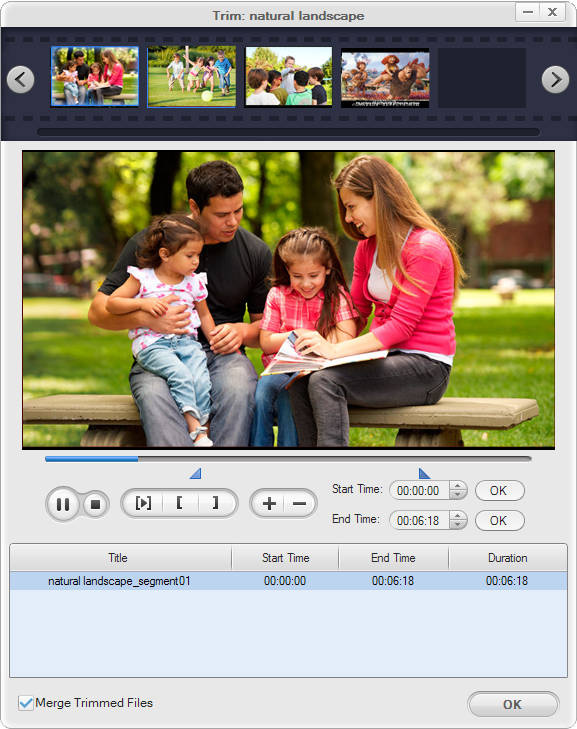
Cut AVCHD - Click "Trim" button. Drag the start slider to set the start time, drag the end slider to set the end time, and the video in between will be captured and kept. Click the "+/-" icon to add or remove segments. You can also tick the check box to "Merge Trimmed Files" into a single one.
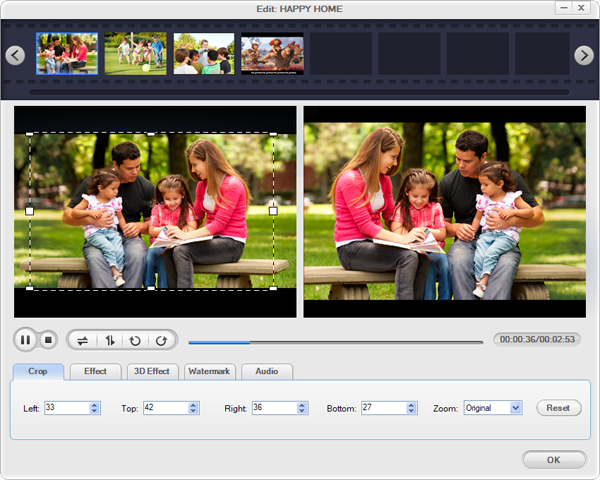
Crop AVCHD - Just click the "Edit" button on the main interface to open the "Crop" window. Drag the square to choose the exact display area you need. Meanwhile, you can fill out the blank column of "Left", "Top", "Right" and "Bottom" to fine adjust the crop value.
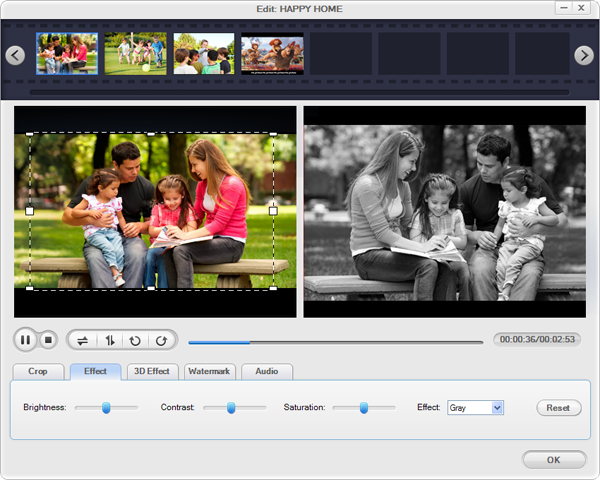
Adjust AVCHD Video Effect - Click the "Effect" tab on the Edit Window, you can adjust the AVCHD video contrast, brightness and saturation, and apply special video effects including old film, gray and emboss to your AVCHD video files
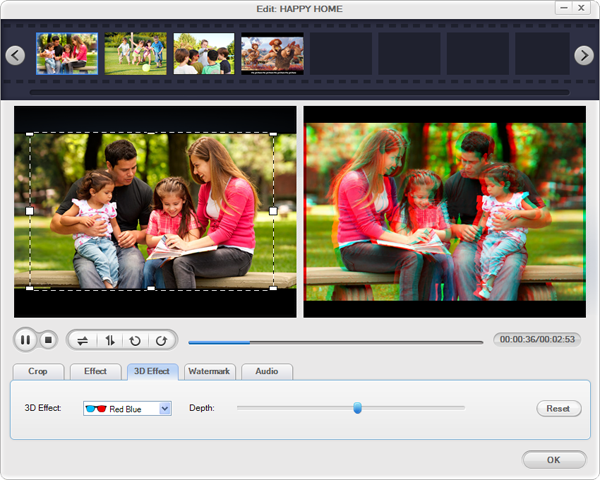
Tips: Except adding special effect to AVCHD, the converter even allow you to add 3D effect to the 2D AVCHD movie, add text/image watermark, and adjust the AVCHD video's audio effect as well. Feel free to try it out!
$49.95
Video File converter, good movies converter to Convert video and HD video to almost any video formats and for playback on all major mobile players.
$89.99 $69.00
Doremisoft SWF video converter is a fantastic and versatile program, which enables you to convert SWF video to a wide rage of video formats like AVI, WMV, MPEG4, MPEG2, etc. That's to say, it takes the hassle out of finding SWF video codecs and fighting with playback on your PC.
$49.95
Best video to flash software to convert the existing video to Flash video format FLV and SWF for website and blog.
Browser compatibility : IE/Firefox/Chrome/Opera/Safari/Maxthon/Netscape
Copyright © 2009-2015 Doremisoft Software Co., Ltd. All Rights Reserved