Looking for a best PDF to ePub Converter to get an amazing quality of eBook for your iPad Air/Mini? Doremisoft PDF to ePub Converter is specially developed to make ePub from PDF files for eBooks reading fans with a more enjoyable experience. The following tutorial is showing you how to convert PDF to ePub eBook on Windows 8/7/XP/Vista. With only 3 mouse clicks, the conversion will be done perfectly.
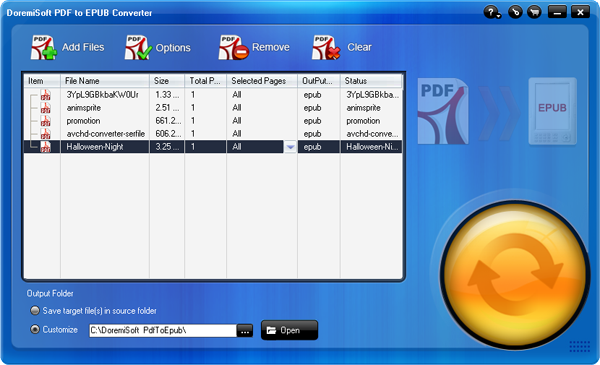
First and foremost, download the PDF to ePub Converter, and then install it step by step following the installation wizard. Launch the converter. On the upper left of the interface, click the "Add Files" button to load one or multiple PDF documents to the application.
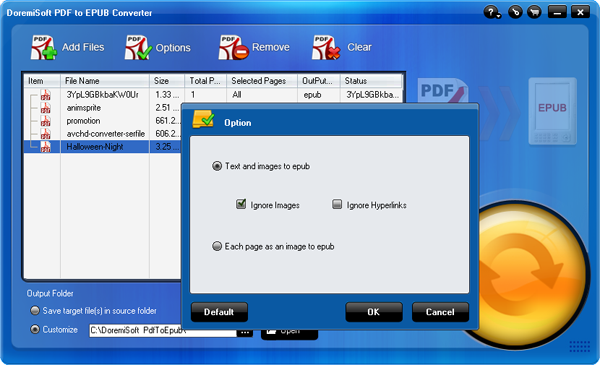
If you want to personalize the conversion range and ePub files before converting, the PDF to ePub Converter allows you to customize the output ePub files. Click "Option" to do the settings in the pop-up window. There are two options: "Custom Style" (the default option) to keep orginal, Ignore Images or Ignore Hyperlinks and "Each page as an image to epub". Apart from these options, the PDF to ePub Converter also enable you to do the partial conversion, which means you can convert only the pages you need into ePub files.
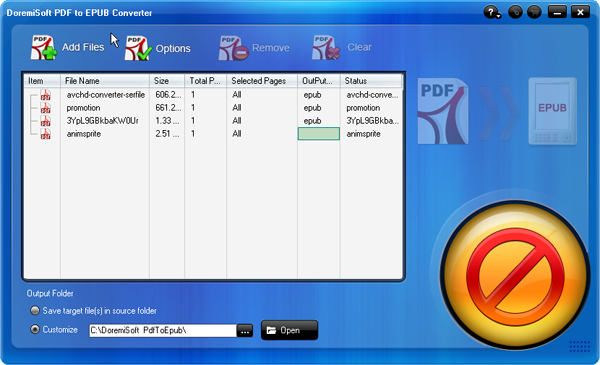
There are two options to set the output path: "Save target file(s) in source folder" or "customize". If you choose the second option, please click the "Open" button to open the dirctory and specify the output folder to store the converted .epub files. Thereafter, press the yellow big button to start the PDF to ePub conversion.
$49.95
Best video to flash software to convert the existing video to Flash video format FLV and SWF for website and blog.
$49.95
Video File converter, good movies converter to Convert video and HD video to almost any video formats and for playback on all major mobile players.
$89.99 $69.00
Doremisoft SWF video converter is a fantastic and versatile program, which enables you to convert SWF video to a wide rage of video formats like AVI, WMV, MPEG4, MPEG2, etc. That's to say, it takes the hassle out of finding SWF video codecs and fighting with playback on your PC.
Browser compatibility : IE/Firefox/Chrome/Opera/Safari/Maxthon/Netscape
Copyright © 2009-2015 Doremisoft Software Co., Ltd. All Rights Reserved