


About RMVB
RMVB is a variable bitrates extension of the Real Media multimedia container format developed by Real Networks. On windows platform, we can play it on RealPlayer SP and the open-sourced Media Player Classic; on Linux and other Unix-like platforms, MPlayer is able to support RMVB; also you can use the cross-platform VLC media player.
For windows guys with a HD camcorder recorded M2TS files, maybe it's a good choice to convert the M2TS files to RMVB files format. Because RMVB is such a good file format featured high-clear quality and small size, it's very suitable to play on windows and broadcast online. In a word, if you hope to get the quality close to DVD but size as small as FLV, the RMVB should be the top choice.
Doremisoft M2TS to RMVB Converter will do you the best favor to transfer M2TS to RMVB with minor quality loss and perfect RMVB output effect. And not just RMVB, you can also convert M2TS to all kind of SD formats because it's an all-in-one video converter actually.
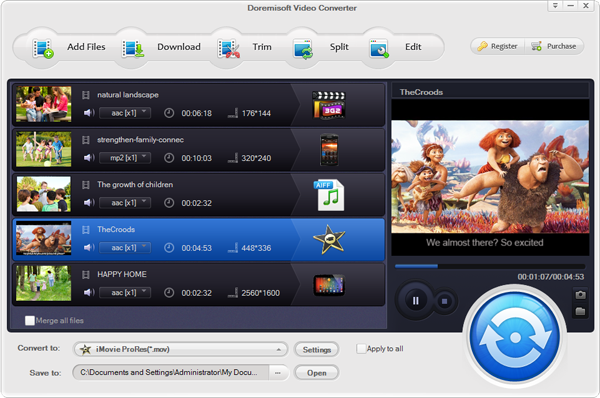
Install and run the M2TS to RMVB Converter, clicking "Add File" to add M2TS from your hard disc.
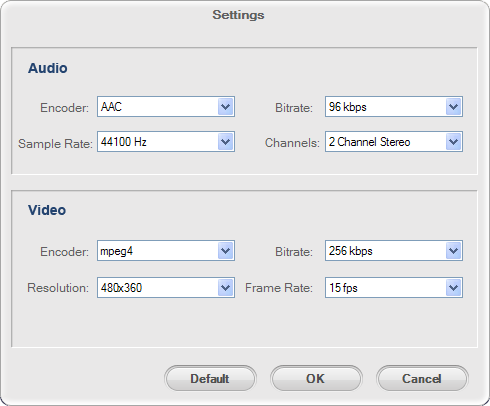
If your M2TS's resolution is too high, i.e. 1080p or 720p, you can here to set the resolution lower to common resolution.
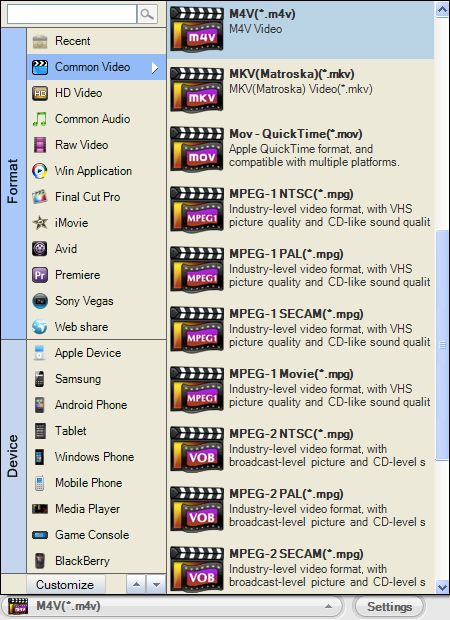
Click the right end of "Profile" to pop out a window, scroll your mouse to "Common Video" and point to "RMVB".
Just press the round "Start" button, and it will show you a "Conversion" dialog box, then wait a minute to get the RMVB output videos.

Browser compatibility : IE/Firefox/Chrome/Opera/Safari/Maxthon/Netscape
Copyright © 2009-2015 Doremisoft Software Co., Ltd. All Rights Reserved
 Download
 Download